Find your favorite
Open the sound library and select an engine or sci-fi sound.
 EV SOUND FX
Choose your screen. Connect your sound.
We’ll walk you through the rest.
Have an internet connection and the email you used for EV Sound FX ready. Your device needs location access for speed-reactive sound.
Already have a monthly or yearly plan? Open the sound hub and use Already subscribed? Restore access with your subscription email if access is requested.
Just curious? Try the free homepage sound preview first.
No phone audio pairing is needed for this route. EV Sound FX runs directly in the Tesla browser where supported.
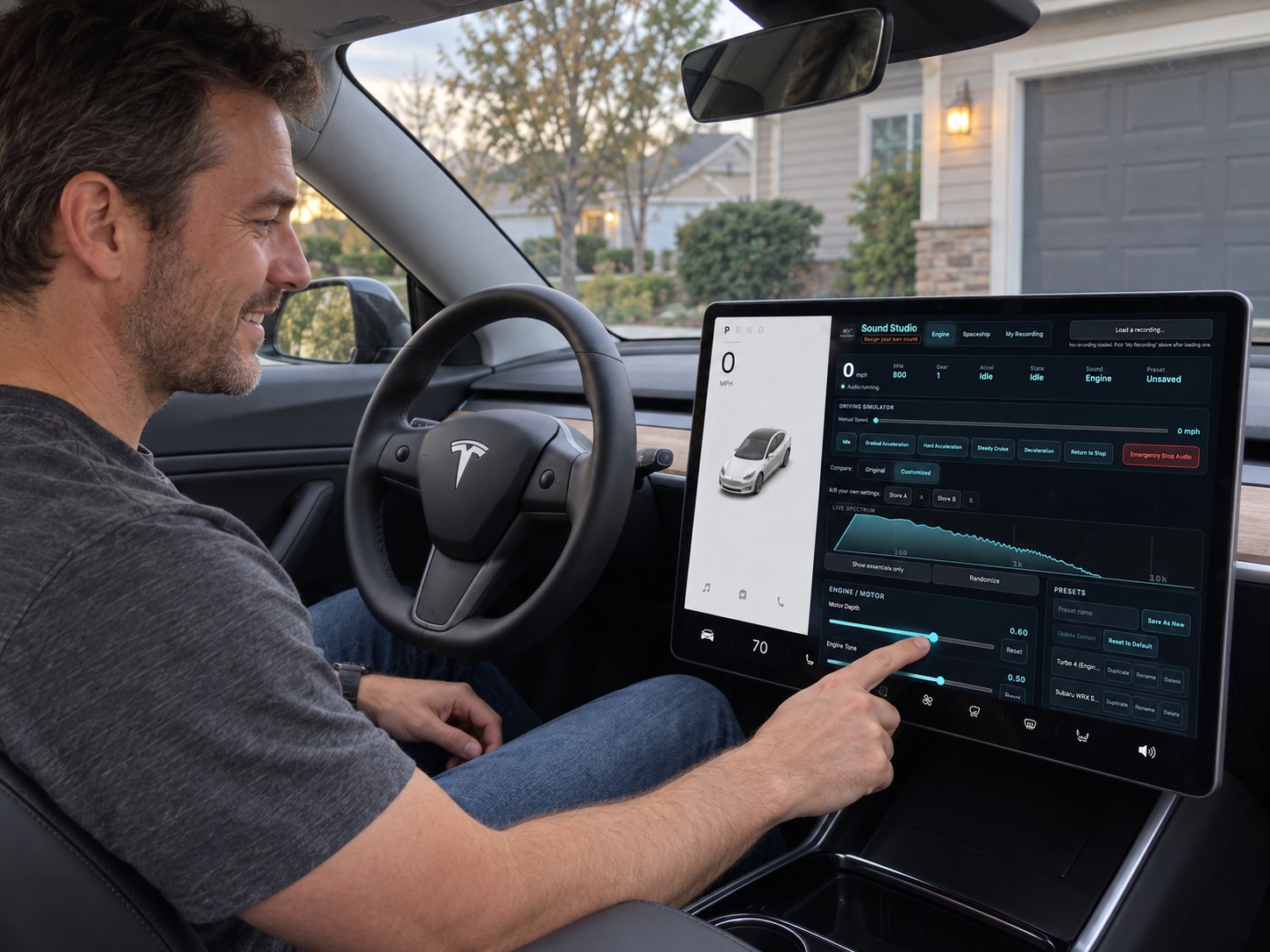
Open the Tesla app launcher and choose Browser. Make sure the car is online.
Enter it in the address bar. Open the sound hub and choose a monthly or yearly plan. Restore access or sign in if asked.
Tap Change sound to choose from the library. Allow location access when prompted so the sound can respond to GPS speed.
Open the sound-controls panel if it is tucked away. Press START, then try REV while parked. Set a comfortable volume using the car’s controls. Press STOP when finished.
Use this in a Tesla or another car that supports Bluetooth media audio. Your phone runs EV Sound FX; your car plays the sound.
Connected for calls?
Select it for music, too.
In the car’s Bluetooth menu, add a device. On your phone, open Settings → Bluetooth (or Connected devices on Android), select the car and confirm the pairing code.
Open the car’s media player and select Bluetooth or Phone, then your connected phone. On Android, also check that Media audio is enabled for the car.
Play a short piece of music on your phone. If it comes through the car speakers, your audio connection is ready. Pause the music before opening EV Sound FX.
In Safari on iPhone or Chrome on Android, visit EVSoundFX.com. Open your plan, choose a sound and press START. Keep the page open and the screen awake. Press STOP when done.
A separate Bluetooth speaker lets you hear EV Sound FX away from the phone—or outside the cabin where permitted.
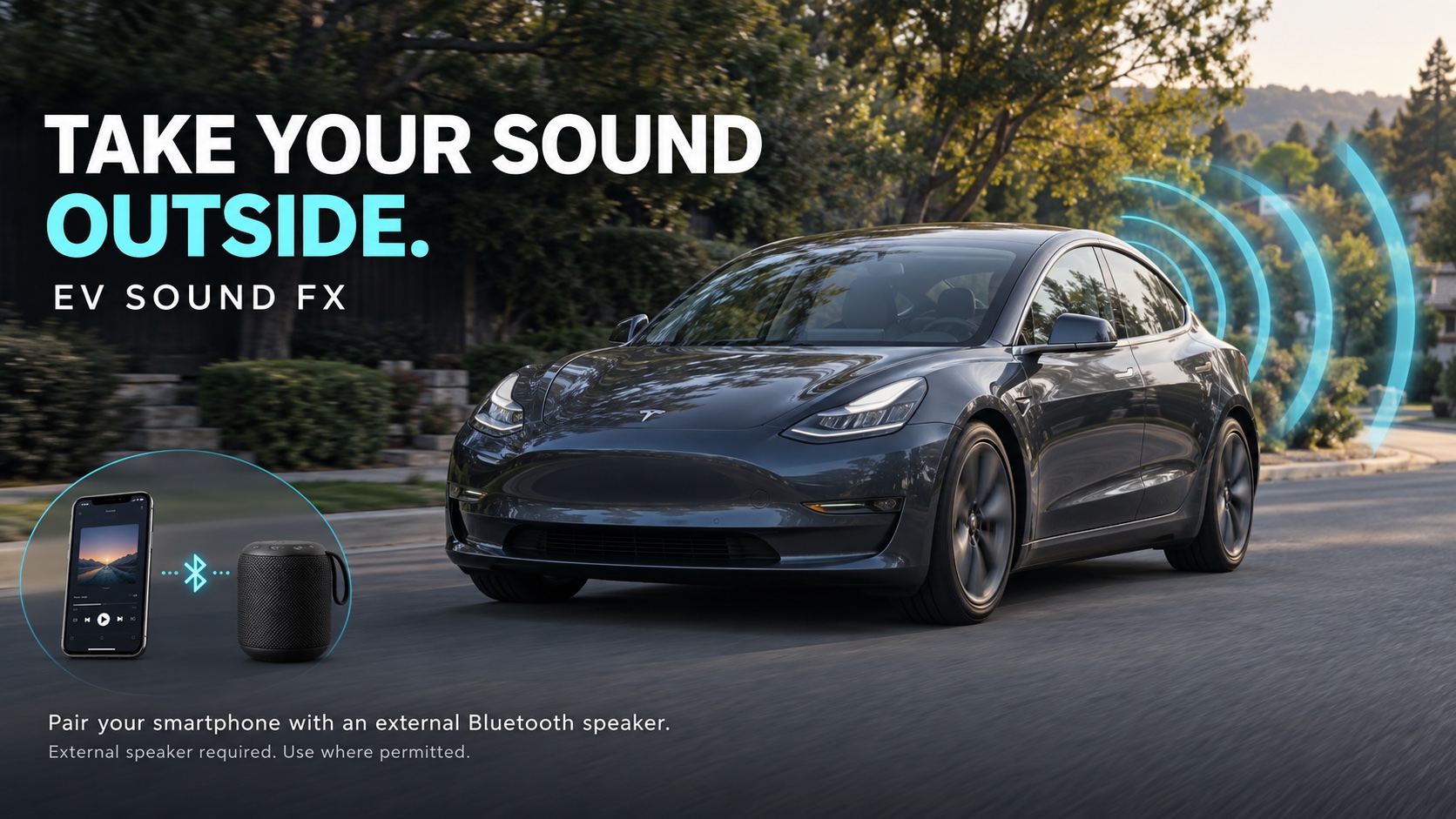
Charge the speaker and hold its Bluetooth or pairing button as its instructions describe.
Open your phone’s Bluetooth settings and select the speaker. If audio keeps going to the car or earbuds, choose the speaker as the phone’s audio output.
Use Safari on iPhone or Chrome on Android. Choose your sound, allow location if prompted, and begin at a low volume. You should hear it from the paired speaker.
Keep the phone in Bluetooth range, with the page open and screen awake. Secure the speaker; don’t leave it loose in the cabin or place it on the outside of a moving vehicle.
The easiest way to get familiar with the controls. No car connection needed.
Use Safari on iPhone or Chrome on Android and enter EVSoundFX.com. If you came from Instagram or TikTok, use Open in browser from that app’s menu.
Open the sound hub for your subscription. Use the same email you signed up with.
Allow location for GPS speed. Open the sound-controls panel if needed, then press START. Try REV while stationary. Turn up media volume; disconnect Bluetooth if you want the phone’s own speaker.
Locking the phone or switching apps can pause browser sound or location updates. For a drive, mount the phone securely and finish setup before moving. Press STOP at the end.
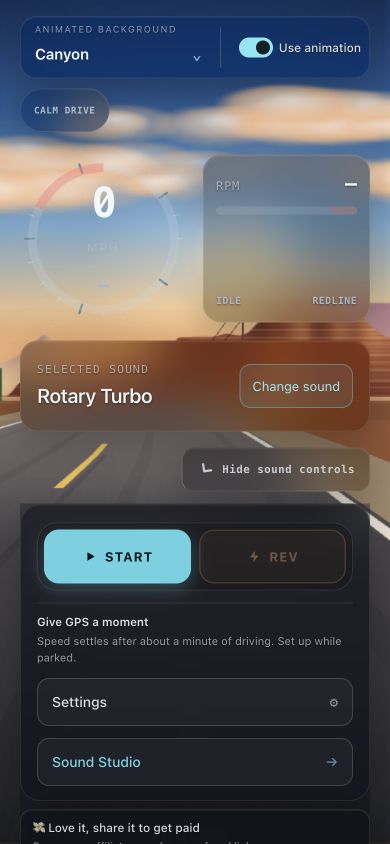
Start here. You can explore the extra settings once you’re comfortable.
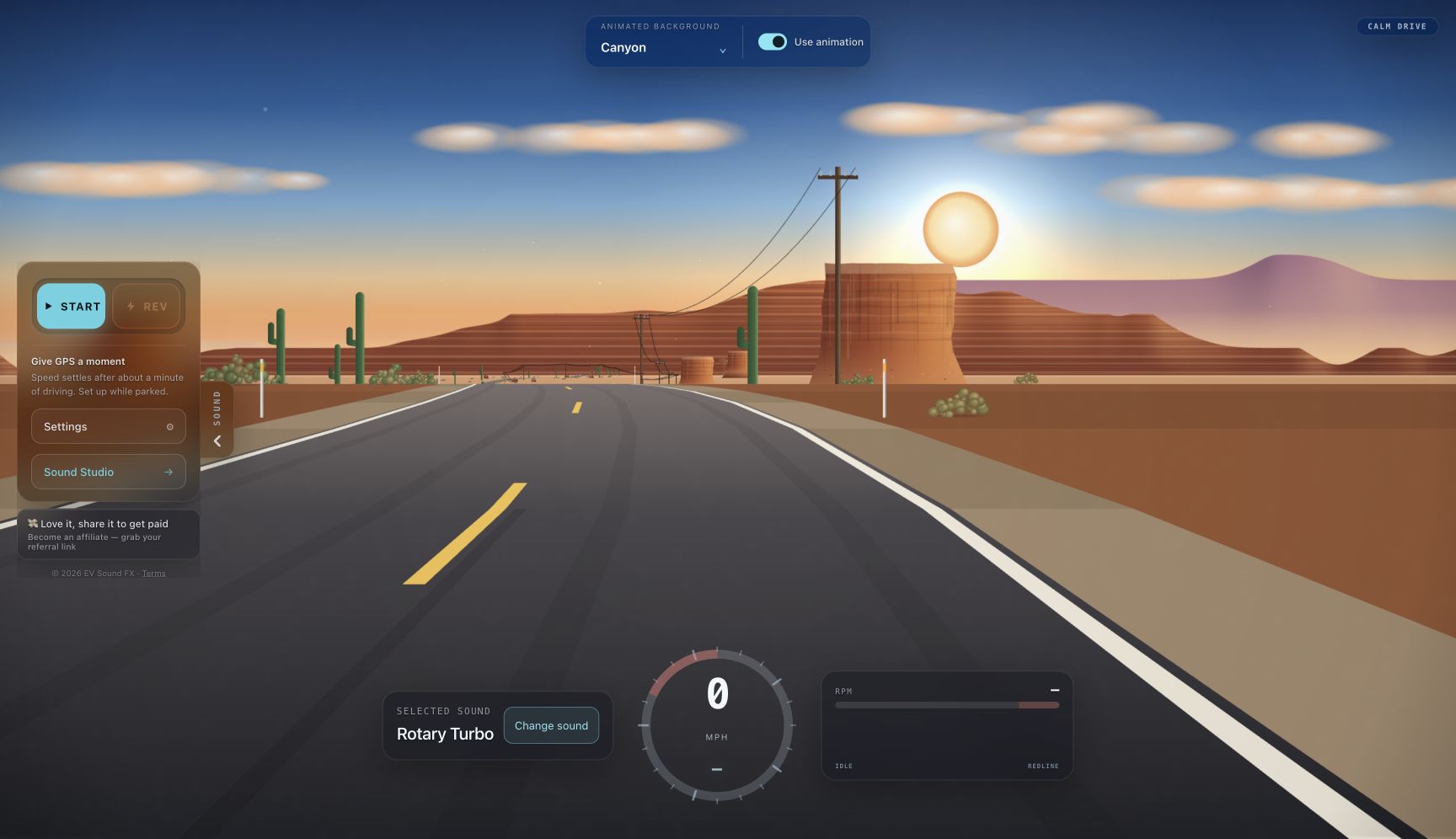
Open the sound library and select an engine or sci-fi sound.
START turns the sound on. STOP ends playback. Always stop when your session is over.
With sound started, hold REV to preview a rev, then release.
If START and REV aren’t visible, expand the sound panel. Settings holds the extra options.
Choose a scene or turn animation off for a still background.
Speed comes from GPS. RPM represents the simulated sound—not your vehicle’s actual engine or motor RPM.
Monthly and yearly plans include unlimited playback, REV included. Press STOP when you’re finished driving.
Connect your phone to the car’s audio input with a compatible cable or adapter. Choose AUX on the stereo, test with music, then start EV Sound FX. A USB charging connection alone doesn’t guarantee audio.
If your setup routes phone browser audio through the car, you can try it. This guide uses the phone’s screen; it does not promise an EV Sound FX app on the CarPlay or Android Auto display. Bluetooth is the straightforward fallback.
Use the free homepage preview to hear the sounds. For driving, choose a device with reliable GPS. Some tablets and computers provide only approximate location, which can make speed readings unreliable.
Most setup issues come down to the audio destination, permissions or the browser.
Check the sound panel’s volume, your device’s media volume and the speaker volume. Confirm the correct audio destination. Pause other media, then tap STOP and START again while parked. If using Bluetooth, test ordinary music first.
Select your phone under Bluetooth / Phone in the Tesla media player. Calls and media can use different audio routes. On Android, check that the Tesla connection has Media audio enabled.
Allow location for the browser and enable precise location if your device offers it. GPS works best outdoors with a clear view of the sky; an indoor test can drift or lag. Give it time to get a stable fix. Don’t use this display as a replacement for your vehicle’s speedometer.
Keep the browser page in the foreground and the screen awake for web playback. Background tabs and locked screens can suspend audio or location. If you change your auto-lock setting for a session, restore your usual setting afterward.
Bluetooth introduces delay that varies by device and speaker. Compare with the phone’s own speaker while parked. A supported wired audio connection or the Tesla’s own browser may avoid part of that delay; neither guarantees instant response.
Start with the same email you used for your existing plan. In the subscription hub, choose Already subscribed? Restore access if prompted. If your plan still isn’t recognized, contact us before buying again.
These instructions cover GPS-based sound and your chosen audio output. EV Sound FX does not use Tesla’s factory pedestrian speaker. The normal browser setup does not read the accelerator pedal; use REV for a parked preview.
Plan on an internet connection for sign-in, access checks and loading sounds. Don’t rely on the web app working fully offline. The Bluetooth connection only carries audio between devices; it doesn’t provide internet to the app.
Tell us your phone, car model, browser and where you want the sound to play.