 EV SOUND FX
Guides / Soundboard
Tesla Soundboard: Play Meme Clips and Your Own Sounds From the Car Screen
How to open a one-tap soundboard in your Tesla browser, which clips are built in, how to add your own from a phone, and how it differs from Boombox.
Short answer: Tesla doesn't ship a meme soundboard, but you can get one in the car's browser. In EV Sound FX, members get a Soundboard button on the driving screen. Tap it and a panel of one-tap clips opens: FAHHH, Rizz, Yeah Buddy, Chicken, Ho Ho Ho and more. You can also add your own clips from your phone, and they show up in your Tesla.
This guide covers what's in it, how to set it up, how it's different from Tesla's Boombox, and the limits.
Soundboard vs. Tesla Boombox
People searching for a "Tesla soundboard" often mean one of two things. They work very differently:
| Tesla Boombox | EV Sound FX Soundboard | |
|---|---|---|
| Where it plays | Outside, through the external speaker | Inside, through the cabin speakers |
| When | Parked | Parked or while your engine sound is running |
| Your own sounds | From a USB drive | Uploaded from a phone or computer, synced to the car |
| Needs | A Boombox-equipped Tesla | The car's browser (or a phone over Bluetooth) and a membership |
If you want a sound for people outside the car, our Boombox guide explains how custom Boombox sounds work and what they can't do. If you want clips for you and your passengers, keep reading.
What's on the board
There are 13 built-in clips: FAHHH, Fahhh 2, Rizz, Yeah Buddy, Daddy Chill, Shocked, Fart, Chicken, Role Reveal, Dexter, Private Property, Indian and Ho Ho Ho. Your own clips appear first, ahead of the built-in ones.
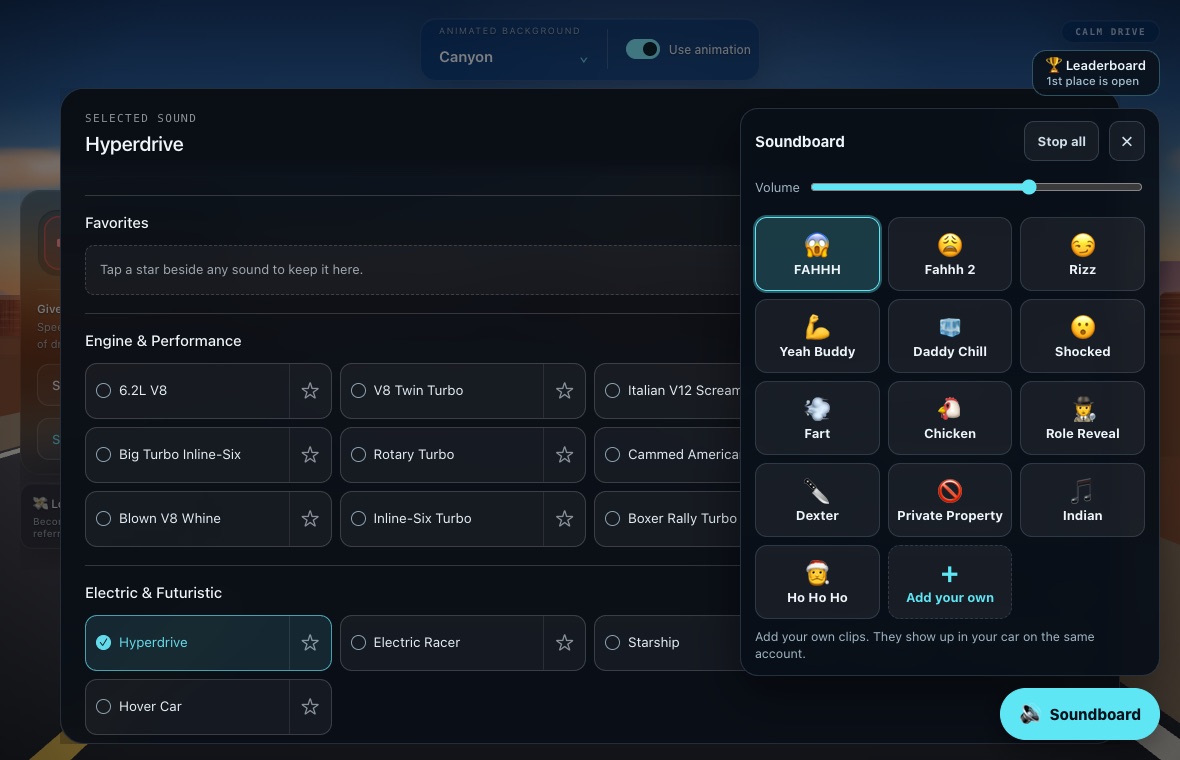
The Soundboard panel on the driving screen, next to the sound library. The panel stays open on the right while the rest of the app keeps working.
How to set it up
- Park. Do the setup with the car in Park.
- Open the sound hub in your Tesla browser and sign in to your membership. The Soundboard button only shows once the app is unlocked.
- Tap Soundboard at the bottom right. The panel opens. If you leave it open, it opens again next time.
- Set the Volume slider. Clips are leveled to a similar loudness, and the slider goes above 100% if you need more. It is separate from your engine volume.
- Tap a clip. Tap again to stack another copy on top. Stop all silences everything at once.
Add your own clips
The Tesla browser can't pick files, so you add clips from another device on the same account:
- On your phone or computer, open the hub, sign in, and open the Soundboard.
- Tap Add your own and pick an MP3, M4A, WAV, AAC or OGG file under 25 MB.
- Name it. The app keeps the first 30 seconds and confirms when it will show up in your car.
- Open the hub in your Tesla. The clip appears at the top of the board with a 🎤 icon.
To remove one, tap Edit on the panel, then tap the clip. Your own clips live in the same place as your custom engine sounds, and they never show up in the engine sound list. That storage holds 12 of your own sounds per account, so if it's full, a new clip stays on the device you added it from until you remove one.
Only upload clips you made or have the right to use.
Does it work with the engine sound?
Yes. While an engine sound is playing, clips go through the same audio as the engine, so they mix on top of it instead of fighting it. With the engine off, the board still plays on its own. That's handy for a quick laugh while parked or charging.
The same hub works on a phone connected to any car's Bluetooth, so the soundboard comes along too. See the phone setup guide.
Limits to know
- It plays inside the car only. It doesn't use Tesla's external pedestrian warning speaker and doesn't change it.
- It needs a membership. The free preview on the homepage lets you hear the engine sounds first, but the soundboard is in the members' hub.
- Clips load over your connection. The board fetches the built-in clips when you open it. On weak signal a clip can fail, and the panel will tell you to try again.
- Browser audio varies by car software. If nothing plays at all, work through the Tesla browser audio fixes.
Want the full setup in your car? Follow the setup guide, then open the sound hub and tap Soundboard.
Hear it in your own car
EV Sound FX plays engine sounds that follow your real speed, right in the Tesla browser or from your phone over Bluetooth. Nothing to install.
Open the sound hub Setup guideFrequently asked questions
Does Tesla have a built-in soundboard?
Not a meme soundboard. Tesla's Boombox plays a short list of sounds, plus custom sounds from a USB drive, through the external speaker while parked. A browser soundboard like the one in EV Sound FX plays clips inside the cabin instead.
Can I use the soundboard while driving?
The clips play through the cabin speakers and can mix over your engine sound. Tapping a screen while moving is distracting, so open it and set the volume while parked, and let a passenger do the tapping.
Can I add my own clips?
Yes, as a member. Tap Add your own on a phone or computer, pick an MP3, M4A or WAV under 25 MB, and name it. It syncs to your Tesla on the same account. The Tesla browser itself can't pick files.
Do soundboard clips play outside the car?
No. EV Sound FX plays through the cabin speakers or a phone's Bluetooth. It does not use or change Tesla's external pedestrian warning speaker.
Is there a limit on my own clips?
Your own clips are stored with My Sounds, which holds 12 of your own sounds per account. Only the first 30 seconds of a clip are kept.