 EV SOUND FX
Guides / Sound Studio
How to Make a Custom Engine Sound for Your Tesla From Your Own Recording
Turn a recording of your old car, or any engine you're allowed to use, into a speed-reactive Tesla sound with EV Sound FX Sound Studio. Steps, tips and limits.
Short answer: yes, you can. EV Sound FX has a Sound Studio where you load your own engine recording, tune how it maps to revs, and save it. Once you're signed in to your membership, the sound appears in the app on your Tesla under My Custom Sounds and rises and falls with your speed like the built-in sounds.
This guide walks through the real steps, what makes a recording work well, and what the feature can't do.
What you need
- A computer. Sound Studio lives at evsoundfx.com/sound-studio. The app itself points you there to make sounds on a computer.
- A recording. WAV, MP3, M4A, AAC, OGG, or even a phone video (MOV or MP4). The studio reads the audio track.
- Your EV Sound FX membership, signed in on that computer, if you want the sound on your Tesla. Without signing in, saved sounds stay on that computer only.
Step by step
- Open Sound Studio on a computer and click Load a recording…. The file stays on your device at this point.
- Read the status line under the button. It shows the length, channels and sample rate, plus how many usable regions it found and roughly what rpm range they cover. If it says Low confidence, a steadier recording will usually sound better than any amount of tuning.
- Choose My Recording at the top right (next to Engine and Spaceship).
- Set Firings Per Revolution. This tells the studio how your recording maps to rpm: about 2 for an inline-four, 4 for a V8, 5 for a V10 and 6 for a V12. Get this close and the revs land where you expect.
- Shape it. Recording Tone sets brightness. Recording Bass adds low end back, which helps phone recordings because phone mics cut a lot of bass. Maximum RPM sets the redline and also moves where automatic shifts happen. Master Volume sets the level.
- Test it with the Driving Simulator. Use the speed slider or the buttons (Idle, Gradual Acceleration, Hard Acceleration, Steady Cruise, Deceleration, Return to Stop). Compare: Original / Customized lets you hear your changes against the starting point.
- Name it and save. In the My Sounds panel, type a name, press Preview in the car to hear it the way the app will play it, then Save to My Sounds.
- Pick it in the car. Open the sound hub in your Tesla browser, signed in to the same membership, and choose your sound from the library under My Custom Sounds. Press START while parked, then drive.
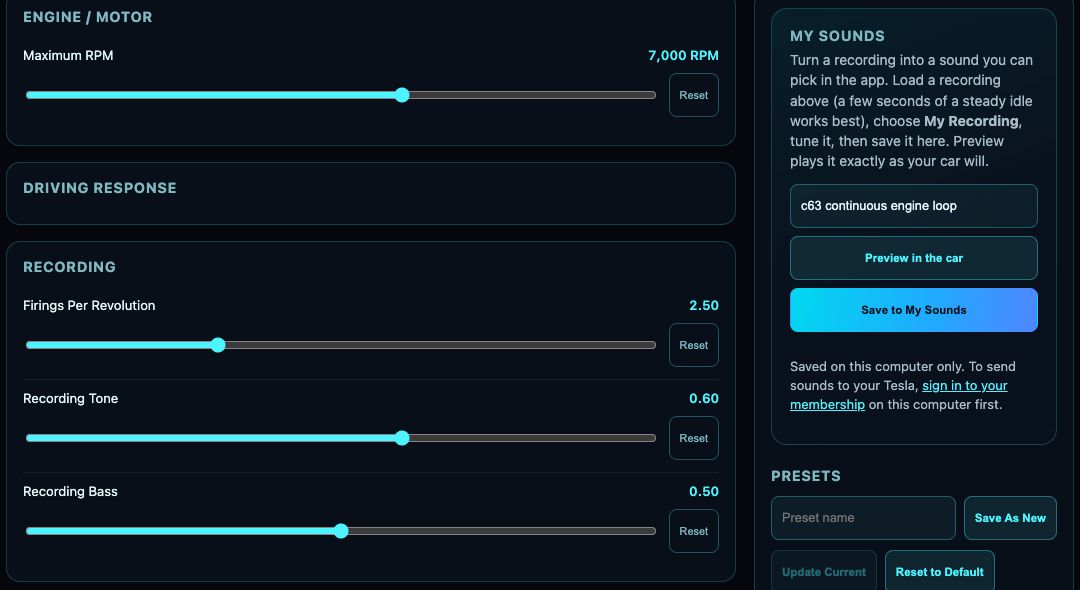
Sound Studio after loading a recording: the Recording controls on the left, and the My Sounds panel where you name, preview and save it.
How to record a good source
The studio doesn't just speed a clip up and down, which would make it sound like a chipmunk. It finds the individual firing pulses in your recording and re-spaces them for each rpm, so the character of the engine survives. That works best when the pulses are easy to find:
- Record a steady idle for several seconds. The studio's own hint says a few seconds of steady idle works best.
- Get out of the wind. Wind on the mic hides the pulses. A garage or a sheltered spot helps.
- Keep people quiet and the radio off.
- Hold the phone still at a safe distance from the exhaust, with the car parked. Don't hold a phone near a hot exhaust or moving parts.
- Keep it short. Only the first 30 seconds are used when you save, so trim long videos first.
What it can and can't do
| It does | It doesn't |
|---|---|
| Play your sound through the cabin speakers, following GPS speed | Read your accelerator pedal or the car's own data |
| Add simulated gear changes, using the same automatic shifting as other engine sounds | Change the Tesla's transmission, power or performance |
| Sync to every device signed in to your membership | Play from Tesla's external pedestrian warning speaker |
| Show you when a recording is weak before you tune it | Fix a recording full of wind, music or voices |
Because the sound follows GPS speed, it reacts a little after the car does. Browser audio can also behave differently between car software versions. If you hear nothing, work through the Tesla browser audio fixes.
Don't have a recording?
Start with the built-in library instead. There's a twin-turbo V8, a supercar V10 and V12, a flat-six, rotaries and sci-fi sounds. Try the free preview on the homepage first, then follow the setup guide to run it in your car.
Set everything up while parked, keep the volume at a level where you can still hear sirens and horns, and enjoy hearing your old car again.
Hear it in your own car
EV Sound FX plays engine sounds that follow your real speed, right in the Tesla browser or from your phone over Bluetooth. Nothing to install.
Open the sound hub Setup guideFrequently asked questions
Can I put my own engine sound in my Tesla?
Yes, inside the cabin. In EV Sound FX Sound Studio you load a recording, tune it, and save it to My Sounds. When you're signed in to your membership, it shows up in the app's sound library on your Tesla under My Custom Sounds.
What kind of recording works best?
A few seconds of a steady idle with little wind or talking. The studio tells you how many usable regions it found and warns you when its confidence is low, so you know before you spend time tuning.
Which audio files can I load?
The file picker accepts common audio and video files, including WAV, MP3, M4A, AAC, OGG, MOV and MP4. Only the first 30 seconds are used when you save.
Does my custom sound play outside the car?
No. EV Sound FX plays through the car's cabin speakers or a phone's Bluetooth connection. It does not use or change Tesla's external pedestrian warning speaker.
Can I use a sound I found online?
Only if you have the right to use it. The safest choice is a recording you made yourself, such as your previous car's idle.