 EV SOUND FX
Guides / Twin-turbo V8
How to Make Your Tesla Sound Like a Twin-Turbo V8
Choose V8 Twin Turbo in EV Sound FX, preview the sound, and customize volume and simulated shifts. A practical Tesla sound guide—not a performance tune.
To give your Tesla a twin-turbo V8 soundtrack, open EV Sound FX, select Sound FX → Engine & Performance → V8 Twin Turbo, and set up playback while parked. You can then choose how the simulated gearbox behaves and set a comfortable listening level.
If you searched for “tune your Tesla to sound like a V8,” this is an audio customization. It does not remap the motors, add horsepower or install turbochargers. The sound plays through your chosen audio output.
Already comparing all the ways to add engine sound? Start with our general Tesla V8 guide. This page focuses on choosing and setting up one particular preset.
Hear the twin-turbo preset first
Start with the free homepage sound preview. Select V8 Twin Turbo, activate playback if prompted, and use HOLD TO REV. The preview is stationary: you do not need to drive to decide whether you like the sound.
The preset’s character combines a V8 engine note with turbo-style effects. Compare it at a similar listening volume with the other available previews. Focus on the sound as the revs rise and fall, rather than choosing whichever setting seems loudest.
Select V8 Twin Turbo in your Tesla
- Park and connect. Open your Tesla’s browser and visit EVSoundFX.com. Browser and audio behavior can vary by vehicle software; a compatible phone connected to car Bluetooth is another route.
- Open the sound hub. Sign in or restore access using your existing membership when prompted.
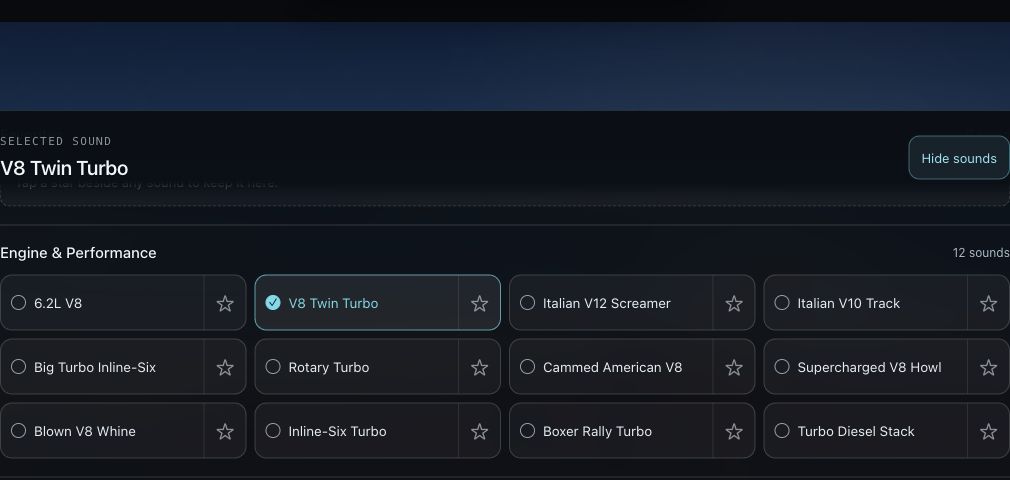
- Open Sound FX. Under Engine & Performance, select V8 Twin Turbo. Confirm that the selected-sound heading changes to that name.
- Prepare playback. Allow location access for GPS-based speed response. Close the sound list, press START, and try REV while parked.
- Set your volume. Begin quietly, check the output through your intended speakers, and finish choosing settings before moving. Press STOP when finished.
For device connection steps, use the Tesla and Bluetooth setup guide.
Customize the feel without changing the car
Open Settings → Driving sound → Automatic drive mode. These choices affect the simulated sound’s shifting. They are separate from Tesla’s own acceleration settings.
| EV Sound FX setting | Simulated shifting | How to choose |
|---|---|---|
| Relaxed | Shifts earlier | Start here if you prefer less time at higher simulated revs. |
| Normal | Balances response | Use it as a baseline before comparing the other styles. |
| Sport | Holds gears longer | Choose it if you prefer the sound to stay in each simulated gear longer. |
Keep the volume similar when comparing styles so you can judge the shifting itself. Change one setting at a time, while parked between comparisons. A louder soundtrack is not evidence of a better setup.
For a different kind of control, supported Tesla setups offer Manual shifting. In manual mode the app leaves gear changes to you; automatic shift styles are relevant when automatic mode is active. Read the manual shifting guide before choosing that option. The gears and RPM are simulated, not changes to the Tesla’s drivetrain.
Twin-turbo V8 or another engine?
V8 Twin Turbo is the V8 in the current sound library. Earlier V8 variants (6.2L, Cammed, Supercharged and Blown) have been retired from the picker. If you want a different character, compare the Italian V10 Track, Italian V12 Screamer, Flat-Six 9000 or Big Turbo Inline-Six. Treat them as different soundtracks, not power upgrades. Compare idle, rising revs and shifts at the same comfortable volume.
You do not need a particular Tesla trim to prefer one soundtrack. Choose the sound you enjoy hearing, then use volume and simulated shifting to make the experience suit you.
What to check if it does not sound right
No audio? Check your media output and volume first. The app’s Settings includes No sound? Tap to fix. Our browser audio troubleshooting guide covers further checks.
Delayed response? GPS-based speed updates and Bluetooth audio can introduce delay. This setup is not direct accelerator-pedal telemetry. Do not interpret a stationary REV preview as a measurement of response while driving.
Expecting exterior sound? EV Sound FX does not control Tesla’s factory pedestrian warning speaker. Use your cabin audio for the normal setup; a separate suitable speaker is needed for exterior playback. Never place a loose speaker outside a moving vehicle.
Try the free twin-turbo preview, then open the sound hub when you are ready to set it up.
Hear it in your own car
EV Sound FX plays engine sounds that follow your real speed, right in the Tesla browser or from your phone over Bluetooth. Nothing to install.
Open the sound hub Setup guideFrequently asked questions
Does this tune my Tesla’s performance?
No. EV Sound FX creates an audio experience. Choosing a sound or simulated shift style does not add turbochargers, increase motor power or change the car’s physical gearing.
Where do I find the twin-turbo sound?
Open Sound FX in the sound hub, then choose V8 Twin Turbo under Engine & Performance. The homepage also offers a free preview.
Can I hear it through Tesla’s outside speaker?
EV Sound FX does not control Tesla’s factory pedestrian warning speaker. The normal setup plays through your selected media output. Exterior playback requires a separate suitable speaker.
Does Sport mode change the car’s acceleration?
The Sport option described here belongs to EV Sound FX’s Automatic drive mode. It holds simulated gears longer; it does not change Tesla’s vehicle drive settings.
Can I try the sound before buying access?
Yes. The homepage has a free stationary preview with no sign-up. Full sound-hub access is separate; check the current plans before purchasing.