 EV SOUND FX
Guides / Sci-fi
How to Make Your Tesla Sound Like a Spaceship: Sci-Fi Sounds and Space Scenes
Five futuristic sounds that follow your speed in the Tesla browser, which space scenes to pair them with, and parked-only Boombox tricks for outside.
Short answer: you can't change the sound a Tesla makes outside, but you can give the cabin a sci-fi soundtrack. EV Sound FX runs in the Tesla browser and plays futuristic sounds that rise and fall with your real speed, and you can pair them with a space scene on the screen. Here's which sounds to pick, how to set them up, and what Boombox can add while you're parked.
Why a Tesla already sounds a bit like a spaceship
- Motor and inverter whine. Electric motors spin very fast, and the electronics that drive them make a high, smooth tone that climbs with speed.
- The pedestrian warning hum. At low speed the car plays a synthesized sound from an outside speaker so people can hear it coming. It's a required safety feature, and you can't change it. More in our pedestrian warning sound guide.
Both are quiet by design. To really hear the starship, you add it inside the cabin.
The five futuristic sounds
In the EV Sound FX hub, the sound library has an Electric & Futuristic group next to the engines:
| Sound | Simulated gears | Good for |
|---|---|---|
| Starship | Yes | The lowest-pitched of the four electric sounds. The classic spaceship pick. |
| Hyperdrive | Yes | A fuller electric hum that builds as you accelerate. |
| Neon | Yes | A softer, smoother electric tone. |
| Electric Racer | Yes | The highest-pitched and most intense of the group, closer to a race car than a cruiser. |
| Hover Car | No | A retro, cartoon-style flying-car whirr that follows speed smoothly with no shifts. |
The four electric sounds layer a motor whine that follows your road speed directly, plus a regen whine when you lift off or slow down, on top of simulated gear changes. If you'd rather have no shifts at all, Hover Car is the one. These descriptions are our summary of how each one behaves; listen for yourself while parked, because taste matters more than any table.
Try it free first
The homepage has a free interactive preview, no account needed. Pick the Sci-fi, Electric or Hover Car tab, press Play sound, and hold Hold to Rev. Take a virtual drive runs a 0–60 demo, and the scenery chips change the background. The preview sounds are stationary demos, not GPS-driven, and their names don't exactly match the hub library.
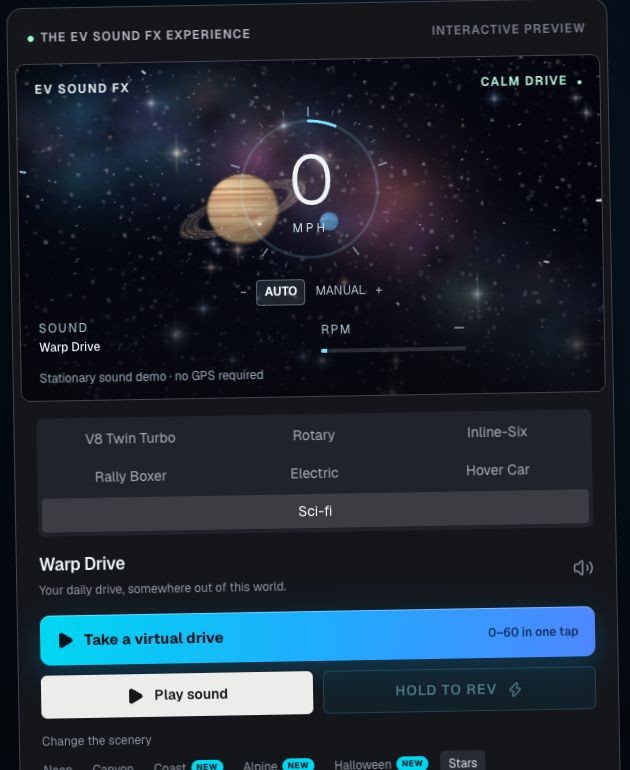
The free homepage preview with the Sci-fi tab selected.
Set it up in your Tesla (while parked)
- Open evsoundfx.com in the Tesla browser and go to the sound hub.
- Open the sound library and pick Starship, Hyperdrive, Neon, Electric Racer or Hover Car. Tap the star to keep it in Favorites.
- Press START and set the volume.
- Choose a background (next section).
- Drive. The sound follows your GPS speed. GPS is not pedal data, so it reacts to how fast you're actually going, with a short delay.
Pair it with a space scene
The hub's background picker has two kinds of backgrounds. Still images are the default. Turn on Use animation to see the animated scenes instead.
- Orbital Blue (still): deep space and a blue horizon. A good choice if you want the look without extra processing.
- Star Flyby (animated): nebulae, planets and warp-speed stars.
- Galaxy (animated): a spiral galaxy that turns as you drive.
- Portal (animated): a tunnel of light.
- Neon (animated) or Neon Rain (still): a rainy city at night, which suits the Neon sound.
Animated scenes move by real distance: the stars stop when you stop and pass faster as your speed rises. Our suggested pairings: Starship with Star Flyby, Hyperdrive with Galaxy, Electric Racer with Portal, and Neon with Neon. The app itself notes that still backgrounds use less processing and may feel more responsive, so if the sound ever stutters on an older car, switch animation off.
Shift gears in a starship
Starship, Hyperdrive, Neon and Electric Racer use simulated gears, so you can turn on Manual shifting in Settings and, on supported Tesla setups, shift with the left scroll wheel: one click up, two quick clicks down. The on-screen + and − buttons work too. A warp drive with gears makes no sense at all, and it's great. The gears are sound only and don't change how the car drives. Our manual shifting guide covers the details.
Option 2: Boombox and custom lock sounds (parked only)
Teslas with an external speaker can play sounds outside through Boombox, and you can add your own from a USB drive. That's a fun way to greet friends with a spaceship landing sound in a parking lot.
The catch: since Tesla's 2022 recall, Boombox only plays while the car is in Park, so it can't cover the pedestrian warning sound while driving. You can also set a custom lock sound, so the car beeps like a docking shuttle when you walk away. Our Boombox guide walks through the file setup.
| EV Sound FX futuristic sounds | Boombox / lock sound | |
|---|---|---|
| Plays while driving | Yes, inside the car | No, parked only |
| Follows your speed | Yes | No, plays a fixed clip |
| Heard outside | No | Yes |
| Cost | $9.99/month or $79.99/year | Free, with your own audio file |
Plenty of owners use both: Boombox for the parking lot, a speed-reactive sound for the drive.
Make your own sci-fi sound
Got a sound effect you made or have the rights to? Sound Studio on a computer turns a recording into a speed-reactive sound you can use in the car. Our custom sound guide walks through it step by step. For short one-tap clips instead, the hub also has a soundboard.
Keep it safe
- Pick sounds, scenes and volume before you move.
- Keep the cabin volume at a level where you can still hear sirens and horns.
- Never try to change or block the pedestrian warning sound.
Prefer something with pistons? See how to make a Tesla sound like a V8. Or start with the free preview on the homepage.
Hear it in your own car
EV Sound FX plays engine sounds that follow your real speed, right in the Tesla browser or from your phone over Bluetooth. Nothing to install.
Open the sound hub Setup guideFrequently asked questions
Can I make my Tesla sound like a spaceship while driving?
Yes, inside the car. EV Sound FX plays futuristic sounds like Starship and Hyperdrive in the Tesla browser, and they build and fade with your GPS speed. People outside don't hear them.
Which EV Sound FX sounds are sci-fi or electric?
The Electric & Futuristic group has five: Hyperdrive, Electric Racer, Starship, Neon and Hover Car. You can try a sci-fi sound, an electric sound and Hover Car in the free preview on the homepage.
Can I get a space background on the Tesla screen too?
Yes. In the hub, the background picker has a still Orbital Blue space image, and with Use animation turned on you can choose Star Flyby, Galaxy or Portal. Animated scenes move with your speed. Set them up while parked.
Can Boombox play a spaceship sound while I drive?
No. Since a 2022 recall, Boombox sounds only play while parked, so they don't cover the required pedestrian warning sound. You can still load a custom spaceship clip to play in Park.
Does a spaceship sound cost extra?
No. The futuristic sounds come with EV Sound FX like the engine sounds, at $9.99/month or $79.99/year. The homepage preview is free.